 Squeezo
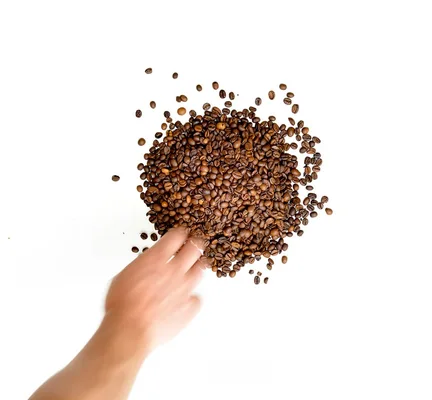
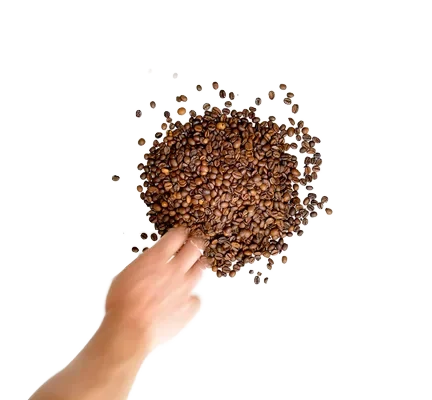
Transparent or solid backgrounds
Squeezo detects the main subject and clears the area around it. A photo with good contrast between the subject and background is easier to cut out. Compare Original and Cutout to spot anything the tool missed.
Keep the background transparent if you plan to place the cutout on a slide, a design, or another photo. For product listings that require a white background, choose White and check the edges against it before exporting as JPG.
How to remove a photo background
- Choose up to eight JPG, PNG, WebP, or AVIF images.
- Open Refine edges to erase leftover background or restore missing parts of the subject.
- Choose Transparent, White, or a custom color. Download the finished image or save multiple cutouts in one ZIP.
File formats
- Input
- JPG, PNG, WebP, AVIF
- Output
- PNG, WebP, JPG with a solid background, ZIP for multiple images
Good to know
- Each input can be up to 100 MB and 50 megapixels. The first edit downloads the background remover. Your photos stay on your device.
- Exports keep the original proportions, with a maximum of 4,096 pixels on the longest side.
Common questions
Can I remove a JPG background and save a transparent PNG?
Yes. Add the JPG, keep Transparent selected, and choose PNG as the download format. WebP also supports transparency. Choose a solid color if you need a JPG output.
What if the cutout misses hair, fur, or a thin edge?
Open Refine edges and use the Restore brush on the missing area. A smaller brush helps around fine edges. Use Erase to remove leftover background.
Can I remove backgrounds from multiple photos at once?
Yes. Add up to eight images and review each cutout before downloading a ZIP. For a set of product photos, choose White and JPG once to apply those export settings across the batch.
File privacy
Your original files and edited images stay in your browser.
Read the privacy policy